


No matter what type of computer you own, whether it's a desktop PC, a laptop or a Mac, you will notice its performance decline over time. If your Windows PC takes forever to boot, freezes while you work or lags in games, this guide shows you how to make your computer faster with simple steps anyone can follow, no extra software required.
Table of Contents
Why Do Computers Slow Down Over Time?
Several things can make a computer slow:
- Large amounts of data stored on the hard disk drive.
- Unnecessary software and obsolete files.
- Not enough RAM.
- Programs that launch automatically at startup and keep running in the background.
- Outdated Windows updates or drivers.
- Viruses and other malware.
- Windows system problems that build up with long-term use.
How to Speed Up a Computer Running Windows
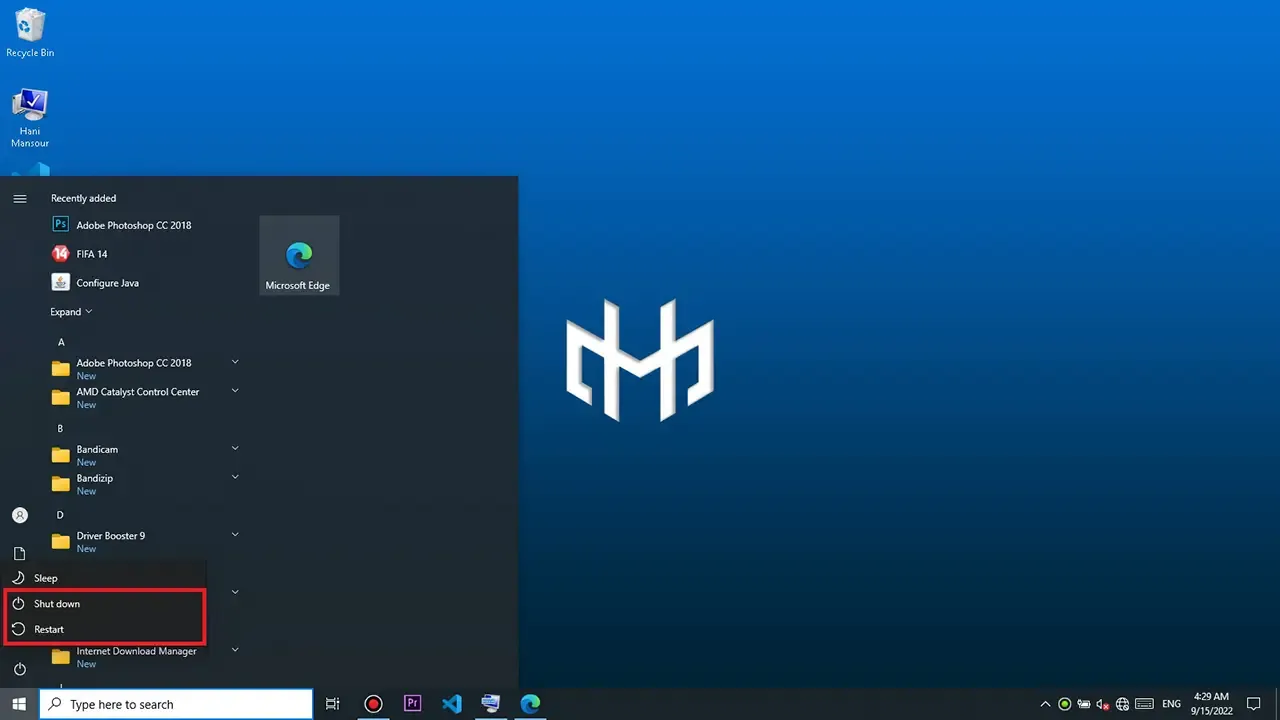
1. Restart Your Computer
If your computer's speed is not what it should be, the first thing to try is a restart. Windows allocates space in RAM to programs as they run, and a restart clears that memory and refreshes the system.
2. Empty the Recycle Bin
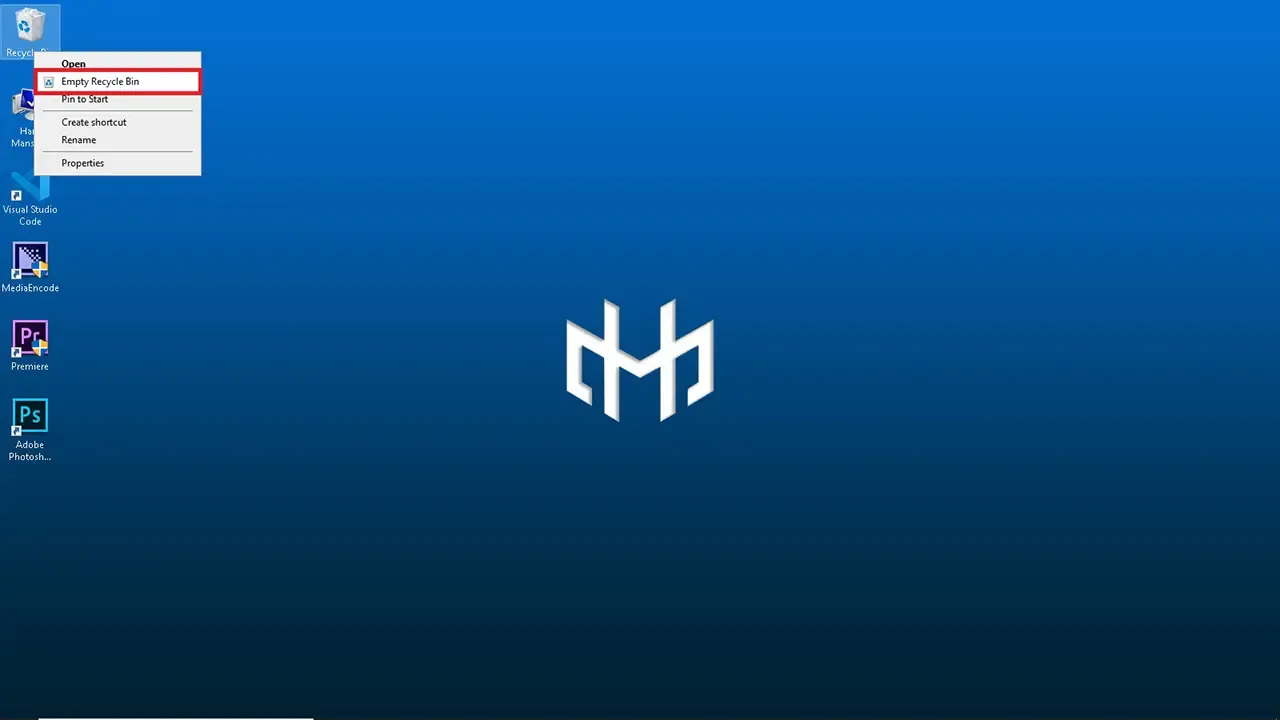
Deleted files pile up in the Recycle Bin and keep using disk space, so clearing it from time to time helps keep your PC performing well.
Right-click the Recycle Bin icon on your desktop, then click Empty Recycle Bin.
3. Uninstall Unnecessary Programs
Computers often come preloaded with applications that many people never use but that eat up system resources. Removing them frees up disk space and memory.
- Open Settings and go to Apps.
- Review the list of installed applications and find the program you want to remove.
- Click it, then click Uninstall.


4. Delete Temporary Files
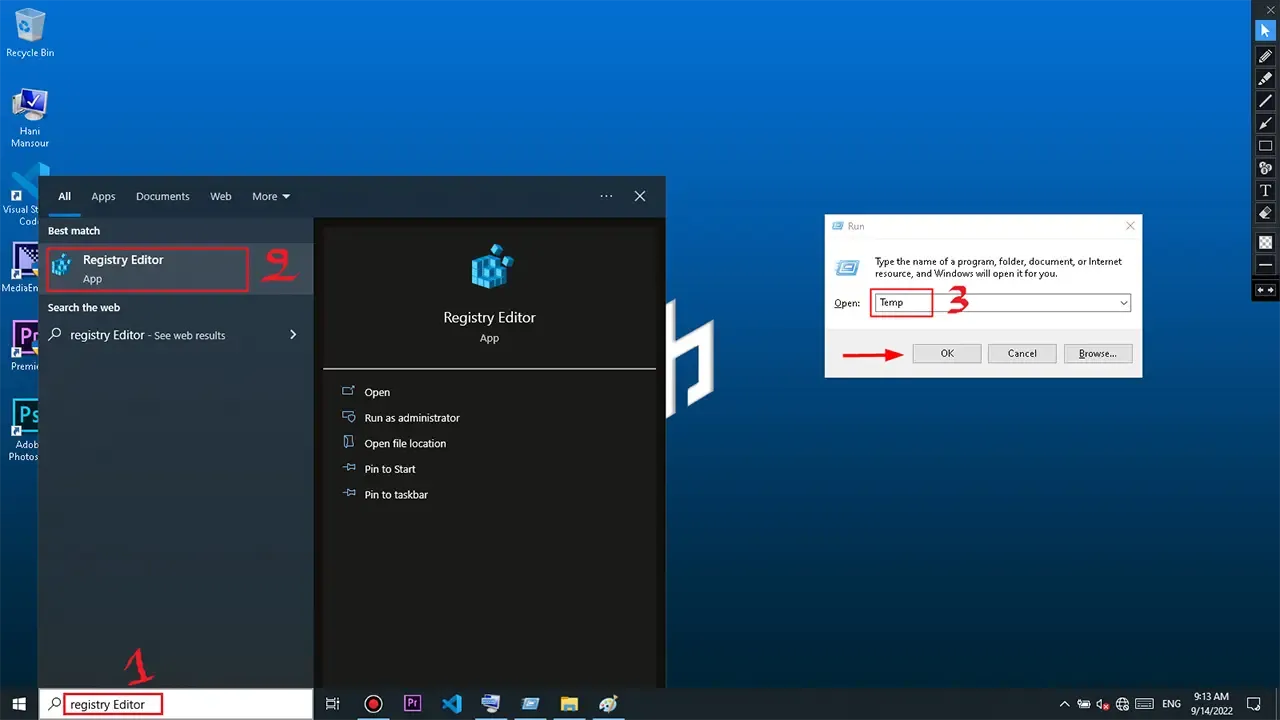
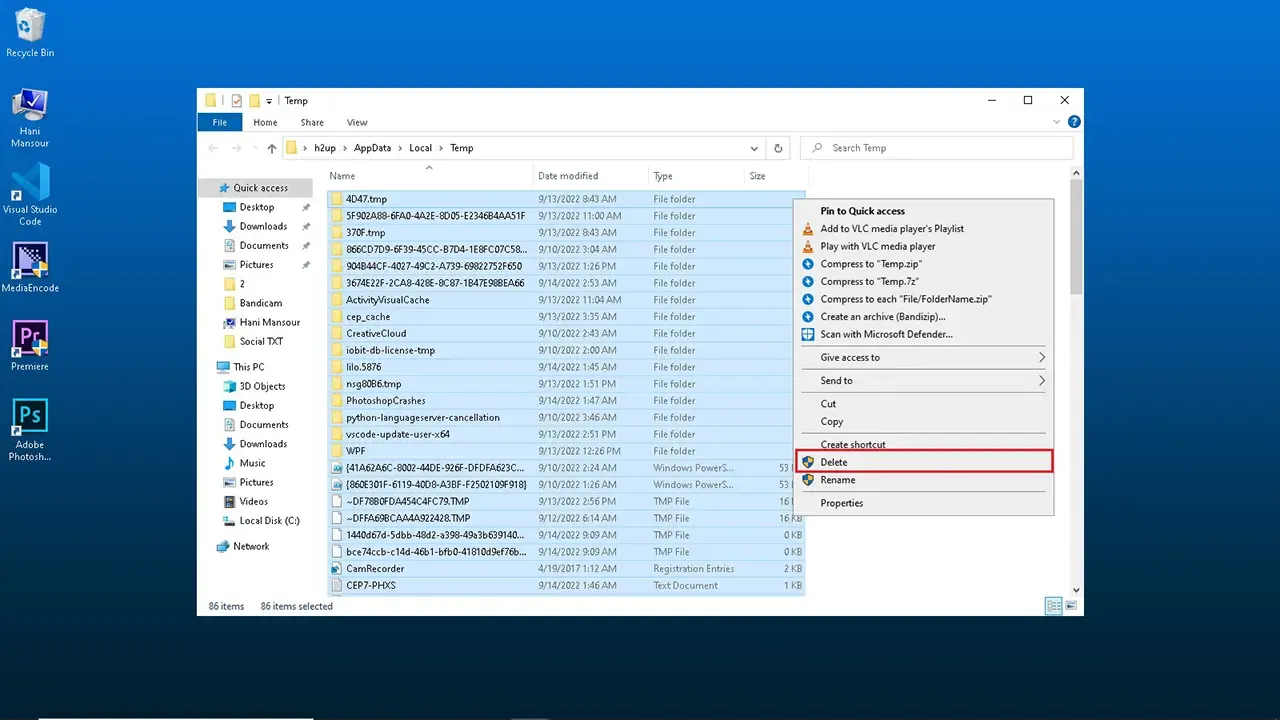
Programs and Windows itself store temporary data in temp files. Over time they can take up a lot of space on your hard drive. Close all open programs first, then follow these steps:
- Press Windows + R to open the Run box, type
tempand click OK. This opens a folder holding many of your computer's temporary files. - Select all the files (Ctrl + A) and delete them.
- Press Windows + R again, type
%temp%and click OK. - Select all the files in this folder and delete them as well.


Info!
Windows may say that some files are in use by a program and can't be deleted. Just click Skip, they are safe to leave.
5. Disable Programs That Run on Startup
Many applications start automatically when you boot your computer and slow down your PC. Limiting startup programs is one of the best ways to speed up boot time.
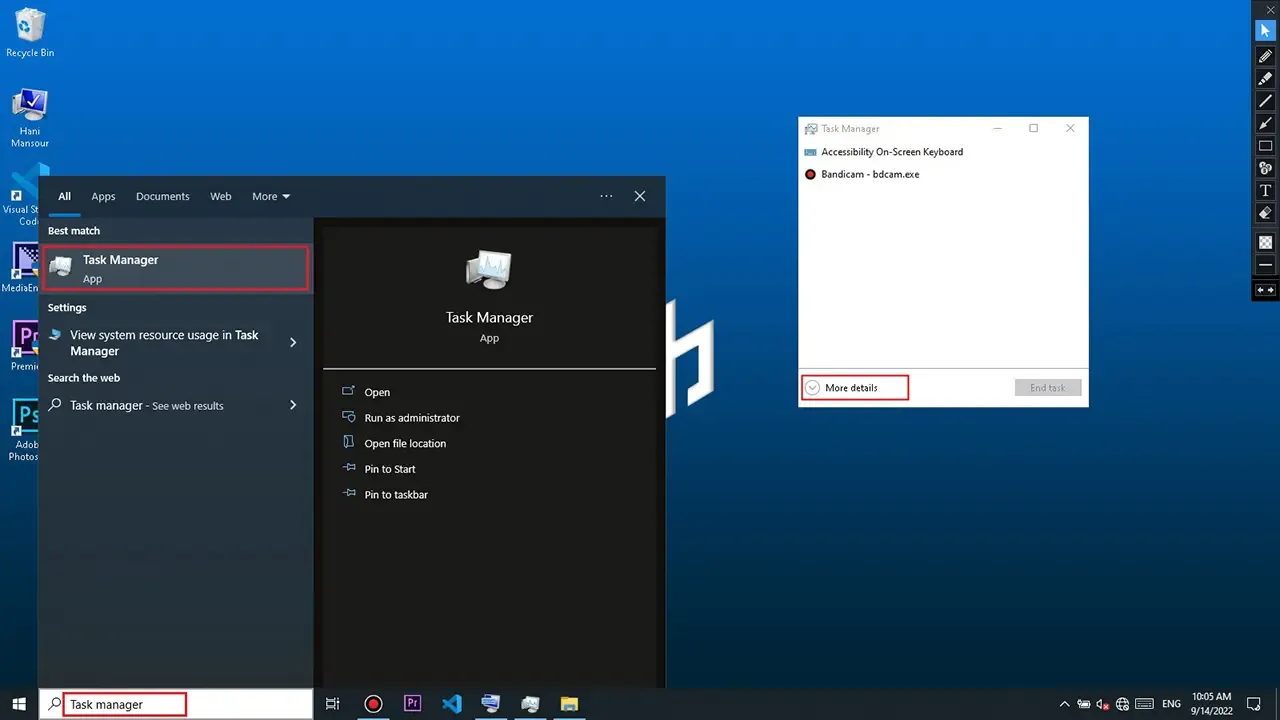
- In the search box, type Task Manager and open it. If it appears in compact view, click More details (the down arrow).
- Go to the Startup tab, which lists all the applications that can run at startup.
- Select the applications you want to stop and click Disable.

6. Close Unnecessary Background Programs
Some programs keep running in the background even after you close them. Task Manager shows how much memory and processing power each one uses.
- Open Task Manager and click More details if needed.
- In the Processes tab, review the programs running in the background.
- Select a program that isn't required for your computer to run properly and click End task.

7. Adjust Windows Appearance and Performance
Windows includes many visual effects, such as animations and shadows. They look great, but they can slow down your PC, especially if it has a small amount of RAM.
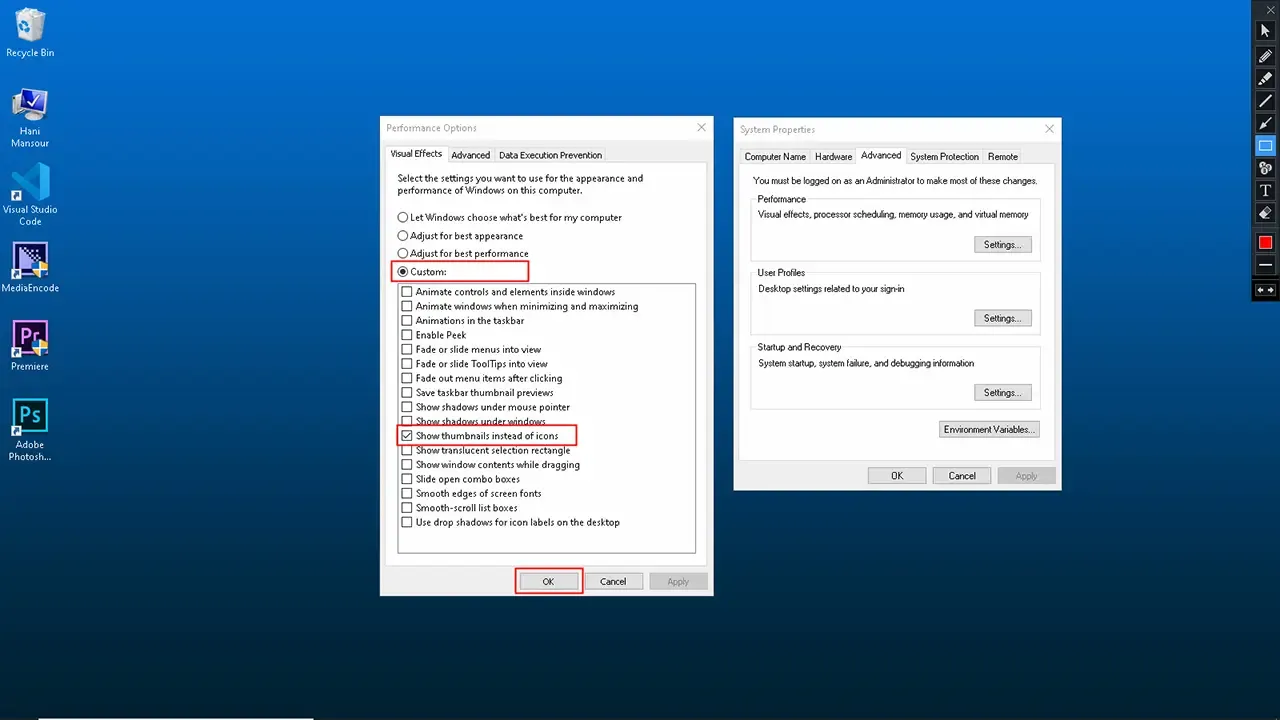
- In the search box, type View advanced system settings and open it.
- Under Performance, click Settings.
- Choose Adjust for best performance, or select Custom and keep only the effects you want, for example Show thumbnails instead of icons.
- Click Apply, then OK.

8. Enable the Single-Click Feature
This is a convenience tip rather than a speed boost: Windows can open files and folders with a single click instead of a double click, which many power users find faster to work with.
- Open any folder.
- In the top menu, go to the View section, then click Options.
- On the General tab, select Single-click to open an item (point to select) and click OK.

9. Install Windows and Driver Updates
Keeping Windows and your drivers up to date is important for the best PC performance, because new updates often include performance improvements and bug fixes. See our guide: how to update device drivers.
- Open Settings, then go to Update & Security (on Windows 11, open Windows Update).
- In the Windows Update section, click Check for updates.
- Download and install the available updates, then restart your PC.


10. Scan for Viruses and Malware
Malware often runs hidden in the background and uses your CPU, memory and disk. Open Windows Security, go to Virus & threat protection and run a Full scan.
11. Upgrade Your Hardware (SSD or More RAM)
If your PC is still slow after these steps, the hardware may be the bottleneck. Replacing an old hard disk drive (HDD) with an SSD and adding more RAM are the two upgrades that make the biggest difference on older computers.
12. Reinstall Windows
If all else fails, reinstalling Windows is the best option to try before resorting to new hardware. After long use, you build up programs and files you no longer need, and cleaning them out one by one helps only so much. A fresh installation removes everything and resets all your settings and drivers to default.

How to reformat your computer and reinstall Windows
Frequently Asked Questions
Why is my computer so slow all of a sudden?
Common causes are too many startup programs, a nearly full hard drive, low RAM, pending Windows updates, or malware. Check Task Manager to see what is using your CPU, memory and disk.
Is it safe to delete everything in the Temp folder?
Yes. Temporary files can be deleted safely. Windows will tell you if a file is in use by a program, and you can simply skip it.
Which startup programs should I disable?
Disable programs you don't need right after boot, such as chat apps, game launchers and updaters. Keep your antivirus and any hardware drivers or utilities your device needs.
Will adding more RAM or an SSD make my PC faster?
Yes. Replacing a hard disk drive with an SSD speeds up boot and loading times dramatically, and more RAM helps when you run many programs at once.
Does reinstalling Windows make a computer faster?
Usually yes. A clean installation removes accumulated junk files, unneeded programs and misconfigured settings, and resets drivers to default.
- How to backup and restore device drivers
- How to download any official Windows version
- How to create a Windows bootable USB flash drive
- How to change the boot sequence with the Quick Boot menu and BIOS
- How to boot a Windows installer without a bootable USB drive
- How to reformat your computer and install Windows
- How to fix internet connection errors
- How to update device drivers
- All-in-One Runtimes package
- How to partition a hard drive and change the storage location
- How to activate any Windows version
Copyright: @hani2up
